Sample screen
Use the sample browser
Add your sample folders, preview and load files, keep favourites and find the samples you used.
The sample browser is a panel at the left of the window. It shows the folders you choose, lets you hear a file before loading it, and remembers your favourites and the samples you used.
Open and close it
Press Cmd+B, or the browser key in the toolbar (the first of the three keys at the right). The same key closes it.
The browser stays open beside the screen. Only when the window is too narrow for both (with the interface zoomed in) does it open over the screen: it then closes when you load a sample, press Esc or click outside it.
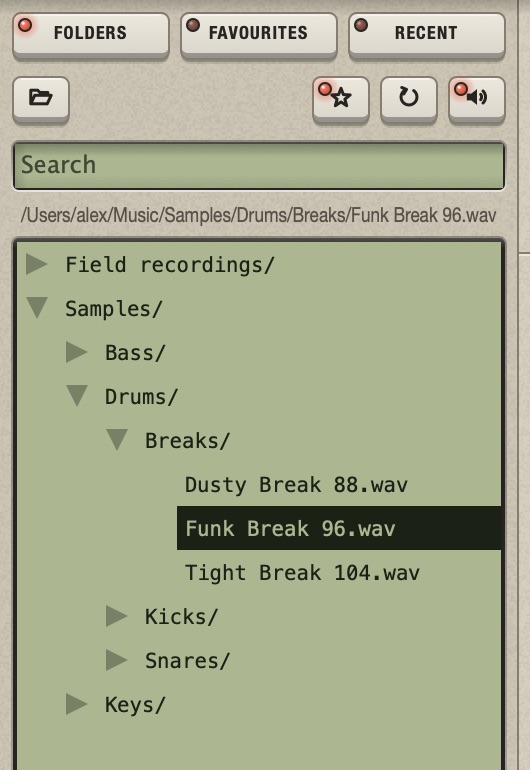

1Add a folder. 2Favourite. 3Refresh. 4Preview on or off. Under the search field is the path of what is selected.
Add your folders
- Open the Folders tab.
- Click the folder key (Add a folder to Folders) and choose a folder that holds samples.
The folder appears in the list. Double-click it to open it: its subfolders come first, then its audio files, by name. Add as many folders as you like.
The browser shows only the folders you add, and only audio files Chop can read. Hidden files and the rest of your disk are not shown.
Preview and load
| You do | What happens |
|---|---|
| Click a file | It plays (preview). |
| Double-click a file | It loads into the selected track. |
| Drag a file onto the waveform, or onto a Multitrack row | It loads into that track. |
| Double-click a folder | It opens or closes. |
- The Preview key (the last of the four) switches the preview off and on. Turn it off to click through files in silence.
- The preview goes straight to the output, at the file's own speed: not through the track, its effects or the tempo.
- A file longer than 10 seconds opens the import page when you load it.
Keep favourites
- Select a file or a folder and click the star. Its light is lit when the selection is a favourite; click again to remove it.
- Or right-click > Add to favourites / Remove from favourites.
The Favourites tab lists them. Double-click a favourite folder to see it in the Folders tab.
Find the samples you used
The Recent tab lists the last 30 samples you loaded into a track, newest first, however they came: from the browser, from the Finder, from a recording or from the import page. Right-click > Remove from recent or Clear recent.
Search
Type in the Search field. The list shows the files whose name contains every word you typed, in any order and case.
- In Folders it searches all your added folders and everything inside them, and shows up to 500 results.
- In Favourites and Recent it filters that list.
- Esc clears the search.
See where a file is
Right-click a file in Favourites, Recent or a search result and choose Show in Folders: the Folders tab opens down to that file. If the file is outside your added folders, the item reads Add its folder to Folders.
Update the list after changing files
Click Refresh (the circle-arrow key) after you add, move or delete files in the Finder. New files appear and files that are gone leave the list.
A folder that is not there any more (an external drive that is unplugged, a folder you moved) turns grey. It cannot be opened. Plug the drive back and click Refresh, or remove the folder from the browser.
A folder being read shows reading... after its name. A slow drive never blocks Chop.
Remove a folder from the browser
Click the folder you added, or a grey one, and press Delete; or right-click > Remove from the browser. This only takes it out of the list: nothing is deleted from your disk. Subfolders and files cannot be removed on their own.
What is remembered
Your folders, favourites, recent samples and the tab you were on belong to the app: they are the same in every project, and stay when you quit.