Sample screen
Select slices and blocks
What a click selects, how to select several pieces, and what the keys and knobs then act on.
Almost everything on the Sample screen acts on what is selected. This page explains the one idea you need: the difference between a slice and a block.
Slices and blocks
- A slice is a piece of the sample. It has a number, shown on the waveform.
- A block is one place in the pattern where a slice plays. Blocks are the boxes in the lane under the waveform.
Right after chopping, every slice has exactly one block, so the two look like the same thing. They stop being the same when you copy a block: slice 5 can then play three times in the bar, through three blocks.
So there are two kinds of change:
| A change to | Reaches | Example |
|---|---|---|
| the slice | every block that plays it, in every variation | Pitch the snare down: all the snares go down. |
| the block | only that one place | Pitch only the last snare of the bar up. |
Example
A loop is chopped into 8 slices; slice 3 is the snare. You copy its block twice, so the snare plays three times in the bar. In the bottom panel, turning Pitch in the Slices group lowers all three snares. Turning Pitch in the Selected Slices group lowers only the one you clicked.
One more consequence. A slice has one start and one end in the sample, shared by all its blocks. If you trim one block in the waveform (drag its edge), that block cannot share the slice any more: Chop gives it a slice of its own, with a new number, so that the other copies keep their length. This is why slice numbers can grow as you work.
What a click selects
Click a piece in the waveform, or a block in the lane: you select that block and its slice.
- The clicked block turns black, with a thick outline.
- The other blocks of the same slice get a thick outline, so you see where else the slice plays.
- The bottom panel shows Slices (the slice's sound), Selected Slices and Roll (that block only).
A click that does not drag only selects: it never changes the pattern.
Left and Right select the previous or the next slice, without choosing one of its blocks. All its blocks turn black, and the bottom panel shows only the Slices group.
Click an empty part of the waveform to select nothing. The bottom panel then reads No slice selected.
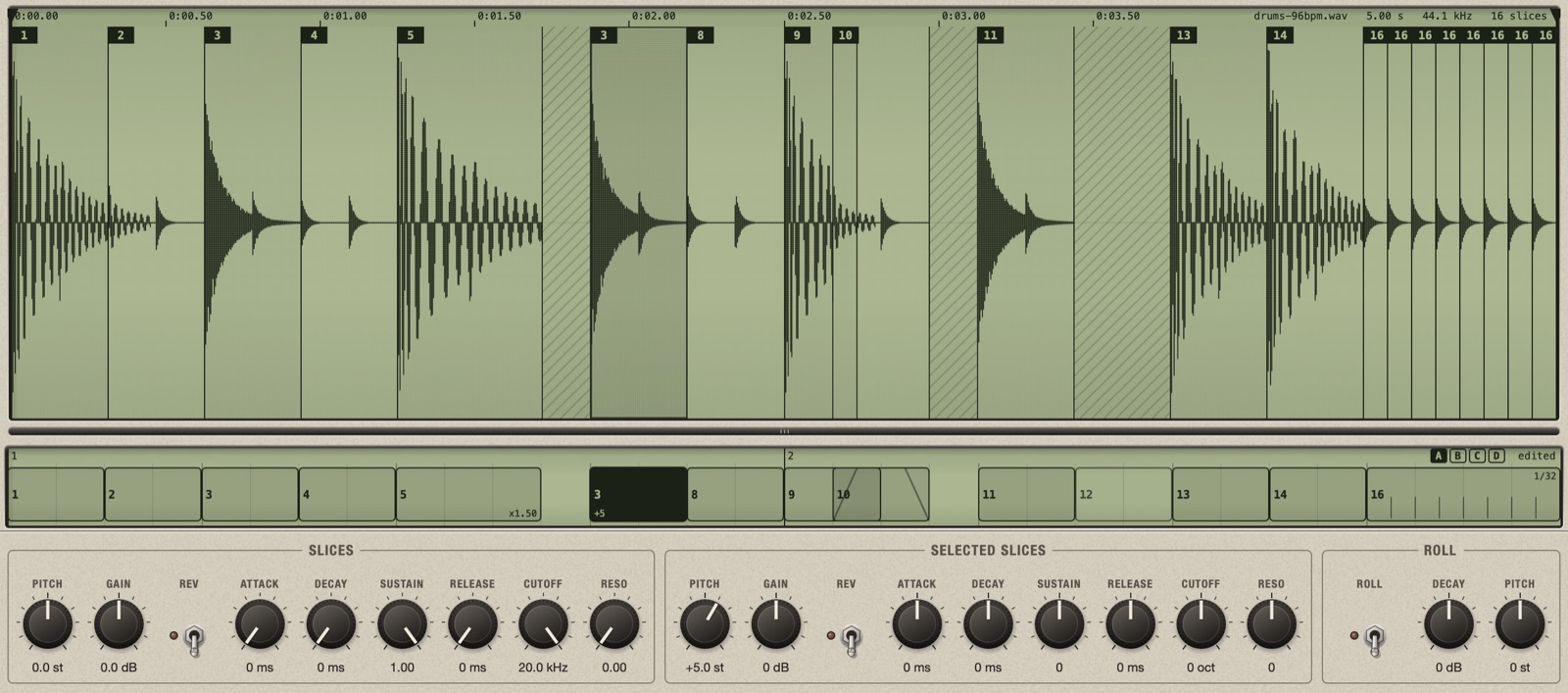
Here the selected block is a copy of slice 3, with its own pitch of +5. Compare with the next picture, where slice 3 is selected with the arrow keys: both its blocks are black and only the Slices group is shown.

Select several
As in the Finder:
- Cmd+click adds a block to the selection, or takes it out.
- Shift+click selects every block from the last one you clicked to this one, in the order they play.
- A plain click selects only what you click.

Only the pieces you click are selected, not the other copies of their slices. The bottom panel shows the values of the last one you clicked.
Select a block that is under another
Where blocks overlap, click the top one, then click it again: the block under it becomes the selected one. Each further click goes one block down. A selected block that is covered keeps its outline, and its edges can still be dragged.
What acts on the selection
| Action | With a block selected | With only a slice selected (arrow keys) |
|---|---|---|
| Space | Plays the slice once. | |
| Delete | Removes that block. Other copies of the slice stay. | Silences the slice in the pattern you see. Its cut stays. |
| Cmd+D | Copies the block right after itself. | Nothing. |
| Knobs of Slices | Change the slice, everywhere it plays. | |
| Knobs of Selected Slices, Roll | Change only that block. | Not shown. |
| Cmd+C, Cmd+V | Copy and paste the slice's sound. | |
| Right-click > Mute | Mutes that block. | |
With several blocks selected, each of these acts on all of them and counts as one undo step: turning a knob gives them all the same value, Delete removes them all, Cmd+D copies each one after itself (and the copies become the selection), Mute mutes or unmutes them all.
Mute, delete, silence, remove: the differences
Five actions make something stop sounding. They differ in what they act on and in how much they take away.
| Action | How | What goes | What stays |
|---|---|---|---|
| Mute a block | Right-click the block > Mute | The sound of that one block. | The block, in its place. Unmute brings it back. |
| Delete a block | Select the block, Delete | That one block. | The slice, its cut, and its other blocks. |
| Silence a slice | Right-click > Silence slice (all copies); or select the slice with the arrow keys, Delete | Every block of that slice, in the pattern you see. | The slice and its cut; its blocks in the other variations. |
| Remove a slice | Right-click > Remove slice | The cut. Nothing becomes silent: the audio joins the slice beside it. | The audio. |
| Clear slices | The key in the tool row | Every cut, and with them the pattern. | The sample, whole, playing from start to end. |
How to choose:
- To try a beat without a hit: Mute.
- To take one hit out of the pattern: Delete the block.
- To take a sound out everywhere in this pattern (all the hi-hats): Silence the slice.
- To undo a cut you did not want: Remove the slice.
- To start chopping again from nothing: Clear slices.
A silenced or deleted piece is drawn hatched in the waveform. To bring a slice back into the pattern, select it with Left or Right and double-click the empty place in the lane; or use Cmd+Z.
Change all the copies of a slice at once
Use the Slices group. It is the only way to change every copy together: a change there reaches the slice wherever it plays, also in the other variations.
What the selection is not
Selecting is not an edit. It is not saved, and undo does not bring a selection back. If you remove a slice or a block, it simply leaves the selection.