Project
Export the mix, stems or slices
Render the song, one file per track or the slices of a track to WAV files.
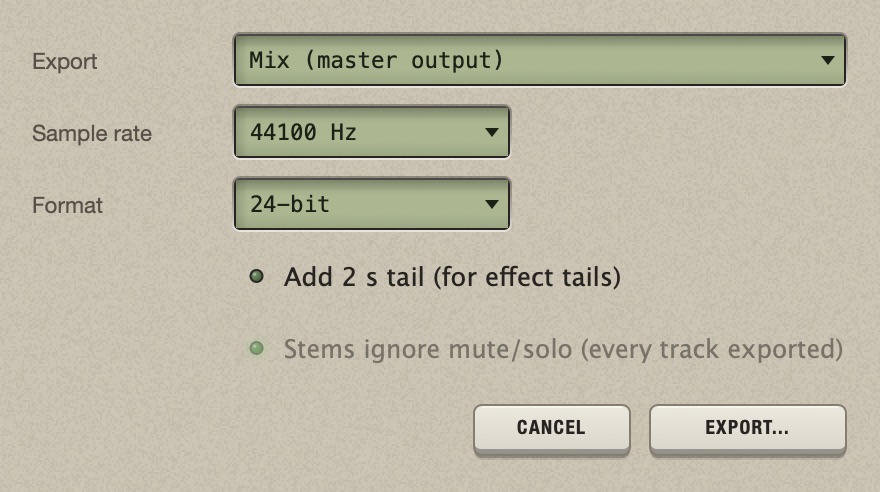
Export writes WAV files of your song. The render is done offline, faster than real time, and always covers the whole project from bar 1, whatever the cursor and the loop range are.
Open the Export window
Press Cmd+E, or choose File > Export...
| Setting | Choices |
|---|---|
| Export | Mix (master output), Stems (one file per track, post-fader), or Slices of track N (the selected track). |
| Sample rate | 44100, 48000, 88200 or 96000 Hz. |
| Format | 16-bit, 24-bit or 32-bit float. |
| Add 2 s tail (for effect tails) | An option with a light: click it to switch it on. Adds two seconds after the last bar, so reverbs, delays and long hits ring out instead of being cut. |
| Stems ignore mute/solo (every track exported) | For stems only. |
Then click Export... and choose where to write. Chop remembers these choices and the folder for next time.
Export the mix
- Choose Mix (master output).
- Choose the sample rate and the format. For a finished file to share: 44100 Hz, 16-bit. To go on working in another program: 24-bit, or 32-bit float.
- Tick Add 2 s tail if the song ends with a reverb or a long sound.
- Click Export..., then choose the file's name and place. Chop suggests the project's name.
You get one stereo file with everything you hear in the song: all tracks, effects, returns, automation, the master's effects and fader. The metronome is never in it.
Which format? 16-bit is the format of a CD and is enough for a finished file; Chop adds dither to it, a very quiet noise that hides the rounding of the samples. 24-bit keeps more detail and is the usual choice for files that will be processed again (mastering, another DAW). 32-bit float also keeps peaks above full level without clipping them, which makes it the safest choice for stems.
Which sample rate? Use the rate of your audio device unless whoever receives the file asks for another one. 44100 Hz is the standard for music, 48000 Hz for video.
Export stems for another program
Stems are one file per track, to go on mixing or arranging in the DAW you already use. Chop is made to build the beat; a full DAW is better at recording vocals over it, at mastering and at long arrangements. Stems are the bridge.
- Choose Stems (one file per track, post-fader).
- Leave Stems ignore mute/solo ticked to get every track, or untick it to get only the tracks you hear.
- Click Export... and choose a folder.
The files are named after the project and the track: My Beat_01_Drums.wav, My Beat_02_Pad.wav. Each holds the track after its effects, EQ, fader and pan, and lasts the whole project, so all stems line up when you drag them to bar 1 of another program set to the same tempo.
The returns and the master are not in the stems: a reverb shared through a send is missing from them. If you need it, put the effect in a slot of the track itself, or export the mix as well.
Export the slices of a track
To use your slices in a drum sampler or on a pad controller:
- Select the track before opening the window.
- Choose Slices of track N.
- Click Export... and choose a folder.
You get one file per slice, named 01_Drums_slice_01.wav, 01_Drums_slice_02.wav and so on. In a track on Stretch timing, a pitched slice keeps its length, as it plays.
While it renders
- A progress window shows the render. Cancel stops it and leaves no partial files.
- If files with the same names are in the folder, Chop asks before replacing them (Replace / Cancel), and replaces them only once the render is complete.
- At the end a message says how many files were written and where.
- Chop does not quit or open another project while it renders.
When Chop refuses to export
- A recording is running: stop it first.
- Slices of a track that has no sample.
Turn a track into a new sample instead
To render one track through its effects and keep working on it inside Chop, use Resample a track.