Sample screen
Load, import and record samples
Get audio into a track: from a file, from a piece of a long file or from the audio input.
Each track holds one sample of up to 20 seconds. Chop reads WAV, AIFF, FLAC and MP3 files, mono or stereo. It never changes your files: cutting, reversing and normalizing happen inside Chop.
Why only 20 seconds: a track in Chop is a sampler, not a tape. It is meant to hold a short piece of audio that you cut up and replay in patterns: a loop of a few bars, a phrase, a hit. A whole song or a long recording is a source to take such pieces from, and the import page is the tool for that.
Load a sample
Select the track (1 to 8), then do one of these:
- drag the file from the Finder onto the waveform area of the Sample screen;
- drag it onto a track's row on the Multitrack screen, to load it into that track;
- press Cmd+L (Edit > Load Sample...) and choose the file;
- double-click it in the sample browser, or drag it from there onto a track.
A file of 10 seconds or less loads at once. Then:
- the track takes the file's name, if it still had its first name (
Track 1). A track you renamed, or one that already took a file's name, keeps it; - Bars, in the Playback group, becomes enough whole bars to hold the sample at the project's BPM, and the sample plays at its own speed. To make it exactly 1, 2 or 4 bars long, see Make a loop exactly N bars long;
- a sample shorter than one beat is taken as a one-shot: Fit goes off and it plays at its original speed;
- the track gets one part at bar 1 of the song, so it plays in the Multitrack too.
Replace the sample of a track
Load another file into the track in any of the ways above. The new sample takes the place of the old one. The track keeps its name, its parts in the song, its mixer settings and its effects. Its slices, its patterns and the Normalize and Reverse switches start again from the new sample. Cmd+Z brings the old sample back with everything it had.
Take a piece of a long file
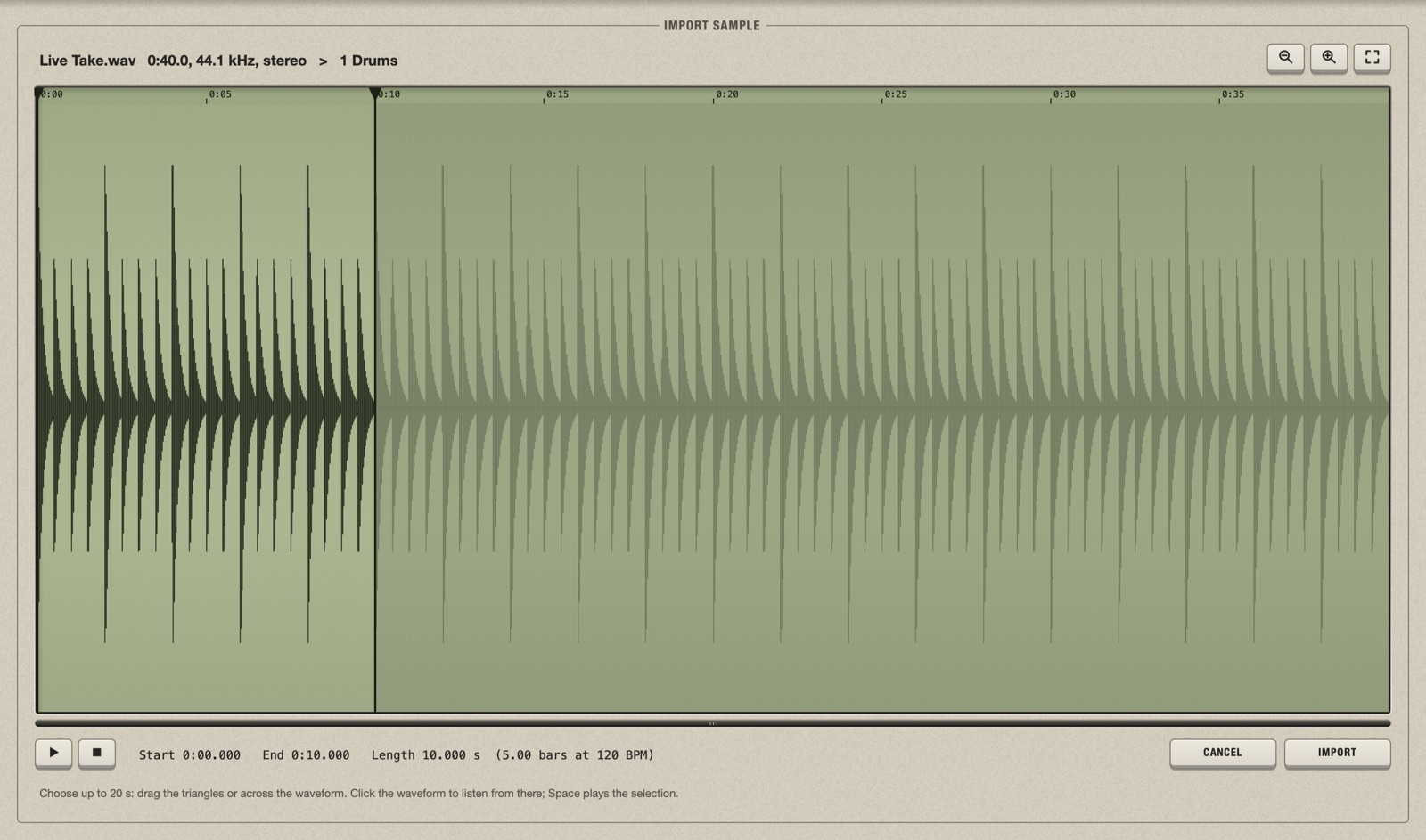
A file longer than 10 seconds, and up to 10 minutes, does not load at once: it opens the Import Sample page, where you choose a piece of up to 20 seconds.
- Load the file as usual. The page shows the whole file, with the first 10 seconds selected between two triangles.
- Click the waveform to listen from that point. Stop stops.
- Choose the piece: drag across the waveform to draw a new selection, or drag the two triangles (or the lines under them) to move its start and end.
- Press Space or the Play key to hear the selection once.
- Read the line under the waveform: it shows start, end, length in seconds and length in bars at the project's tempo. Use it to take exactly 2 or 4 bars.
- Click Import.
Chop writes the piece to a new WAV file, named after the file and the place it starts (for example Break 1m02.500s.wav), and loads it into the track. The file goes into the Samples folder beside your project; if the project is not saved yet, Chop asks where to write it. The long file is not changed.
- Zoom with the wheel or a pinch, or the zoom keys; scroll with Shift+wheel.
- If Snap to zero crossings (the magnet on the Sample screen) is on, the edges of the selection move to the nearest zero crossing when you let go, to avoid clicks.
- Cancel, Esc or a click on a screen key leaves everything as it was.
- One undo step takes the import back; the WAV file stays on disk.
Record a sample
Rec records your audio input to make a new sample: a voice, a synth, a record player. It does not record onto the timeline, and you do not hear the input through Chop while recording.
- Choose the input once: open the settings (Cmd+,). Input reads
<< none >>until you choose a device there. Record: sets stereo or mono. - Select the track that should get the sample.
- Press the Rec key in the toolbar, or Cmd+R. The Record Sample page opens. Its top line shows the input and the track the take will go to.
- Play your source and watch the level meter: green is fine, amber is above -12 dB, red is above -3 dB. Lower the source if it reaches red.
- Press R, or the Rec key on the page, to start. The waveform draws as you record, with the time.
- Press R, Space or Stop to end the take. A take can last up to 10 minutes.
- Choose the piece to keep, up to 20 seconds, exactly as on the import page. A take of 20 seconds or less is selected whole.
- Click Import.
- Which track: the selected one. If it already has a sample, the take goes to the first empty track, and that track becomes the selected one. With no empty track, Import tells you to clear one; the take stays on the page meanwhile.
- Takes are temporary. A new take replaces the last one, and closing the page deletes a take you did not import.
- No input? The page says so and has an Audio/MIDI Settings... key.
- Playback of the song is not touched: you can record while it is stopped or playing.
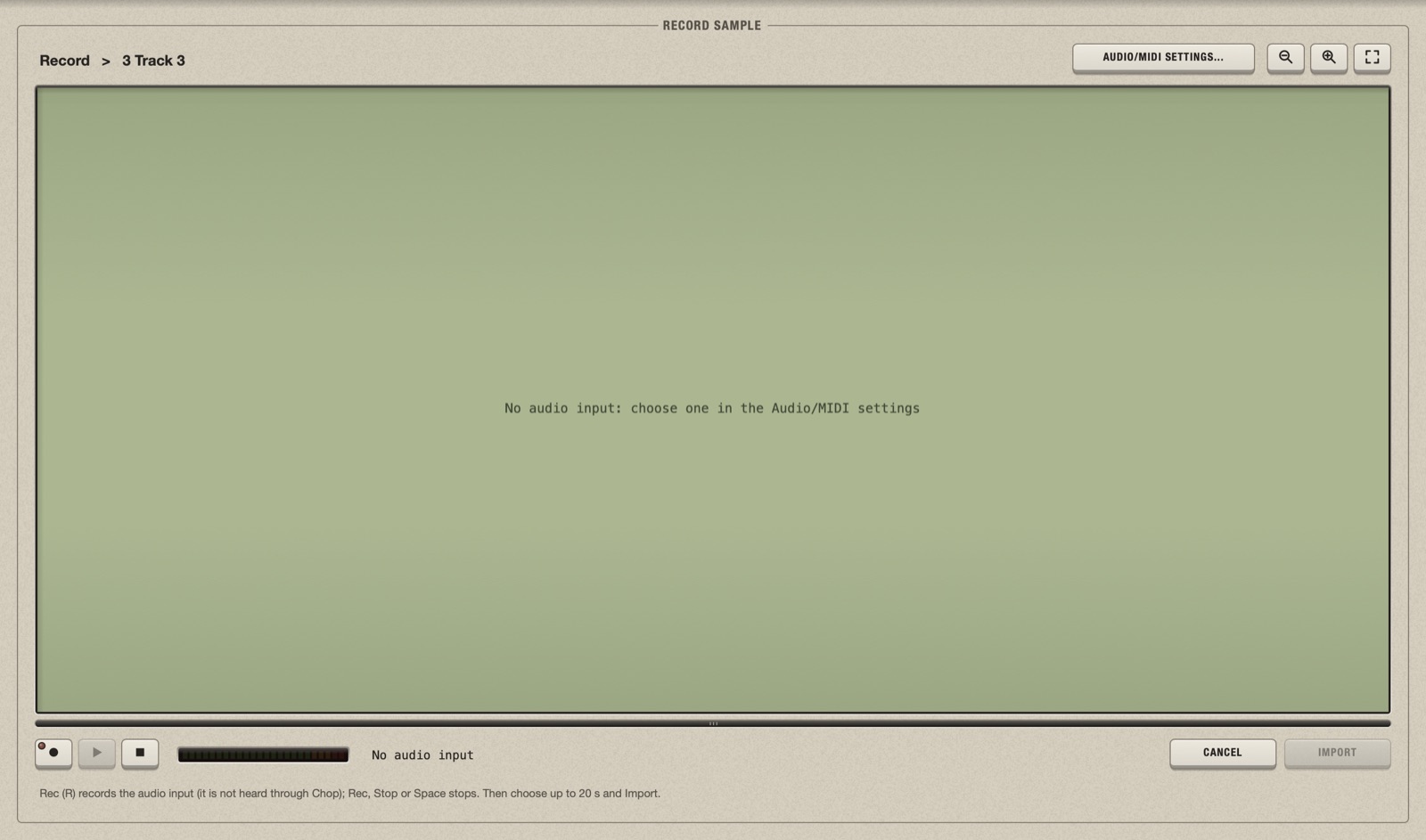
This is the page the first time: Chop has no audio input until you choose one. Once an input is set, the middle reads Press Rec (R) to record from the audio input and the meter shows the level.
Normalize or reverse the whole sample
The first two keys of the tool row are switches. Their light is lit while the change is on; press again to take it off.
- Normalize raises the sample to full level. Use it on quiet recordings.
- Reverse turns the whole sample round: it plays from its end to its start. The slices and your pattern are mirrored with it, so everything you built still plays, backwards.
The file on disk is never modified, and undo takes either change back. To reverse a single slice instead, see Play something backwards.
Edit the sample in another program
Open the file in your audio editor, change it and save it over itself. When you come back to Chop the sample reloads by itself, and the slices keep their proportions.
Empty a track
Click the bin in the tool row (Clear the sample). The track loses its sample, its slices, its patterns and its parts in the song, and goes back to its default name unless you renamed it. Its mixer settings stay. Cmd+Z brings everything back.
Files Chop refuses
| File | What happens |
|---|---|
| More than two channels (surround) | Refused with a message. |
| Longer than 10 minutes | Refused. Cut it in an audio editor first. |
| Sample rate under 8 kHz or over 384 kHz | Refused. |
| Other types (M4A, OGG, video...) | Not accepted. Convert to WAV, AIFF, FLAC or MP3. |
| A damaged file that is shorter than it claims | Read as far as its audio goes. |
A sample's own sample rate does not matter: Chop plays it at the right speed whatever your audio device is set to.