Mixer screen
Use VST3 effects
Find your plugins, load them on a track, a return or the master, and manage them.
Chop has no effects of its own apart from the EQ on each strip: it uses yours. It loads VST3 effect plugins, four on each track, each return and the master.
What Chop can load
- VST3 effects: reverbs, delays, compressors, EQs, distortion and so on.
- Not instruments (synths, samplers), and not Audio Units or VST2 plugins. If a plugin exists in several formats, install its VST3 version.
Find your plugins
Chop has to look for your plugins once, and again after you install a new one.
- Choose File > VST3 Plugins. The page opens in place of the screen.
- Click Scan. Chop looks in the system's VST3 folders and lists what it finds under Effects.
- Press Esc to go back.
The scan runs in a separate process: a plugin that crashes or hangs while being scanned is skipped and listed under Scan failed, and Chop keeps running.
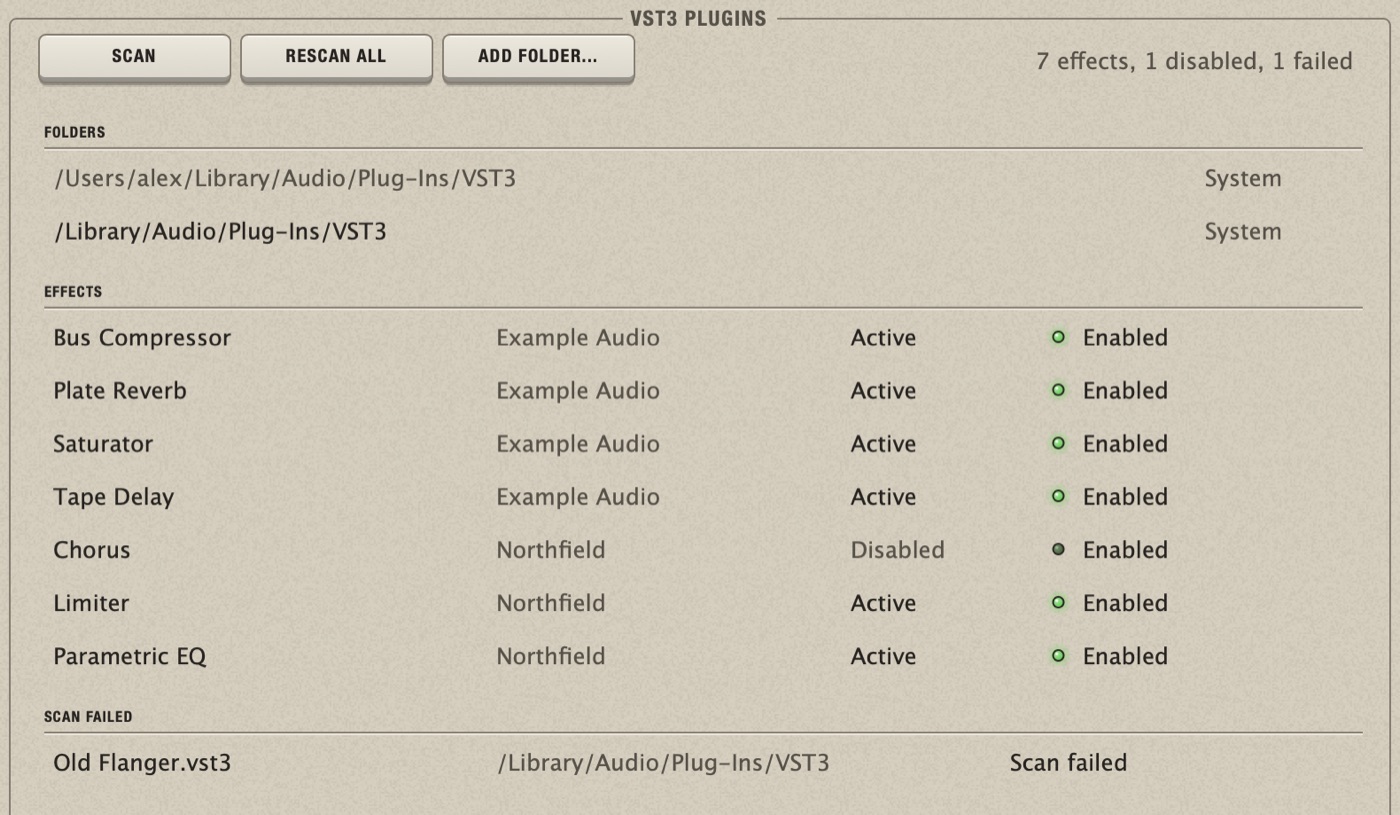
The plugins in this picture are examples; your list shows your own.
The VST3 Plugins page
| Part | What it does |
|---|---|
| Scan | Looks for plugin files that are new or changed. |
| Rescan All | Examines every plugin again, also those whose scan failed. |
| Add Folder... | Adds a folder where you keep plugins outside the usual places, and scans it at once. |
| Folders | The folders Chop looks in. The system's are marked System and are always scanned; yours have a Remove key. |
| Effects | Every effect found, with its maker, its state (Active or Disabled) and an Enabled switch. |
| Scan failed | The plugins Chop could not read. |
This list belongs to the app, not to the project: you scan once for all your projects. While a scan runs, Chop does not quit or open another project: wait, or cancel the scan.
Put an effect in a slot
- Go to the Mixer (Cmd+3) and click one of the four green slots at the top of a strip. An empty slot shows a dash.
- Open Insert plugin, then the maker, and choose the effect.
The slot shows the effect's name and the plugin's own window opens. The four slots of a strip are in series, from top to bottom.
The selected track's four slots are also on the Sample screen, in the Inserts / Sends group: they are the same slots.
If the menu says No VST3 effects: File > VST3 Plugins, scan first.
Open, bypass, replace or remove an effect
Click the slot again. Its menu has:
| Show editor | Opens the plugin's window. |
|---|---|
| Bypass | Switches the effect off without removing it. The slot reads Bypassed. Choose it again to switch it back on. |
| Remove | Empties the slot. |
| Replace with | Loads another effect in its place. |
- Cmd+Z after Remove or Replace brings the plugin back with the settings it had.
- Bypass fades to the clean sound without a click and keeps the timing of the track. The plugin keeps running in the background, so its tails stay continuous; bypass does not save processor power. To save it, remove the plugin.
Effects that follow the tempo
Plugins receive the project's tempo, time signature, position and loop. A delay or an LFO set to sync stays in time, and follows when you change the BPM.
Chop also compensates the delay that some plugins add (look-ahead limiters, linear-phase EQs): all tracks stay aligned, and you have nothing to set.
Switch an effect on and off during the song
An effect's on/off can be automated: on the Multitrack, choose Insert 1 to 4 in the automation menu and draw where it is on. See Automate a parameter. While automation holds it, the slot reads Off (automation) or On (automation).
The knobs inside a plugin's window cannot be automated or mapped to MIDI from Chop.
Hide a plugin you do not use
On the VST3 Plugins page, switch off Enabled for an effect: it is no longer offered in the slot menus.
Disabling a plugin also removes it, with its settings, from every slot that uses it. This cannot be undone, and enabling it again does not bring it back. If the open project uses it, Chop asks first (Disable / Cancel). A project opened later that uses a disabled plugin loses it from its slots, with a message listing them.
When a plugin is not in the list
- Click Scan again: the plugin may be new.
- Check that it is a VST3 effect.
- If it is installed in an unusual place, add that folder with Add Folder...
- Look in Effects: its Enabled switch may be off.
- Look in Scan failed. Plugins fail when their licence is not activated or they need an update. Fix that, then click Rescan All.
A project that uses a plugin you do not have
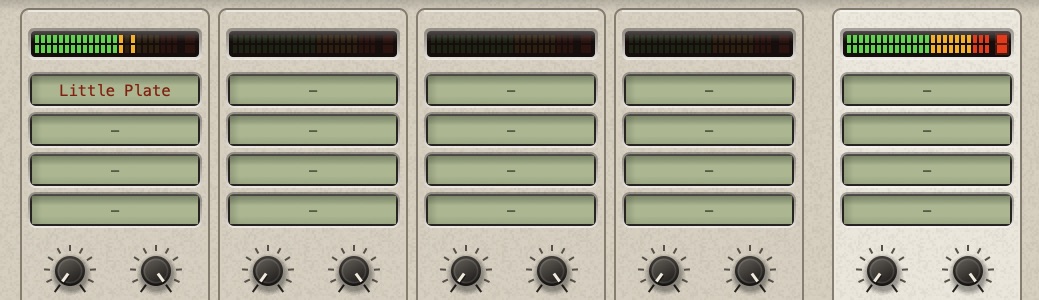
The slot keeps the plugin's name, in red, and lets the sound through unchanged. Click the slot: the first line of the menu says why it could not load. Install the plugin and open the project again.
Good to know
- A plugin that only works in mono gets the sum of the left and right channels.
- A plugin that produces broken output is silenced for that instant, so it cannot damage the effects after it.
- If Chop crashes inside a plugin, the next start names the plugin and offers to disable it. See After a crash.
- The settings of your plugins are saved in the project.