Project
Save, open and move projects
Project files and their samples, unsaved changes, autosave and recovery after a crash.
Save a project
- Cmd+S saves. The first time, Chop asks for a name and a place.
- Cmd+Shift+S (Save As...) saves under a new name.
A project is a file ending in .chop. The title of the window shows its name, with a * while there are changes not saved yet.
Give each project a folder of its own. Chop puts the files it makes for the project (imported pieces, recordings, resamples, collected samples) in a Samples folder beside the project file.
Open a project, or start a new one
- Cmd+O opens a project. File > Open Recent lists the last 10; Clear Menu empties the list.
- The last projects are also in the recent items of Chop's icon in the Dock.
- Cmd+N starts an empty project: 120 BPM, 4/4, 8 bars, eight empty tracks.
Chop has one project open at a time, and only one copy of Chop runs.
Unsaved changes
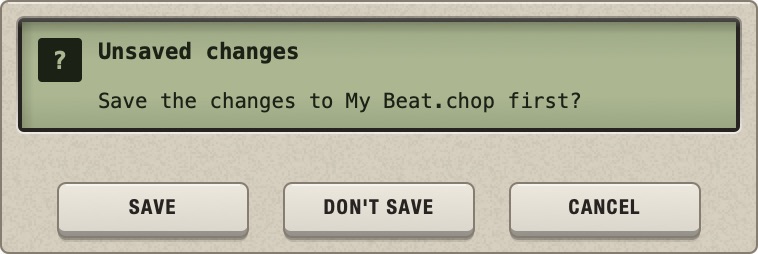
When you close Chop, open another project or start a new one with changes not saved, a window titled Unsaved changes asks whether to save them first.
- Save saves, then goes on.
- Don't Save drops the changes.
- Cancel (or Esc) goes back to the project.
A change made only inside a plugin's window counts as a change too.
Where the samples are
A project does not contain audio. It remembers where each sample file is on your disk. If you move, rename or delete a sample file, the project cannot find it any more.
Two kinds of sample are safe by themselves, because Chop writes them into the project's Samples folder: the pieces you take from long files or recordings, and resamples. Samples you load from elsewhere (your sample library, the desktop) stay where they are until you collect them.
Collect the samples into the project folder
- Save the project first. Collect Samples does nothing on a project that was never saved.
- Choose File > Collect Samples. Every sample is copied into the
Samplesfolder beside the project file, and Chop tells you how many it copied. - Save again (Cmd+S), so that the project keeps the new places.
The original files are not moved or deleted.
Move or share a project
After collecting, the project folder holds everything: move it, copy it to another disk or zip it and send it. Samples inside the project's folder are found wherever the folder goes, also on another computer.
What does not travel with the folder: your plugins. On another computer, each effect loads only if the same plugin is installed there. A slot whose plugin is missing keeps its name and lets the sound through unchanged.
Autosave and recovery
Every 5 minutes, if there are changes not saved, Chop writes a safety copy of the project, with the current settings of your plugins. The copy goes to a folder of its own, never over your project file, and works for a project never saved too. It is deleted when you save, or when you close normally.
If Chop did not close normally (a crash, a forced quit, a power cut), the next start asks Recover unsaved changes? and shows the project's name and the time of the copy.
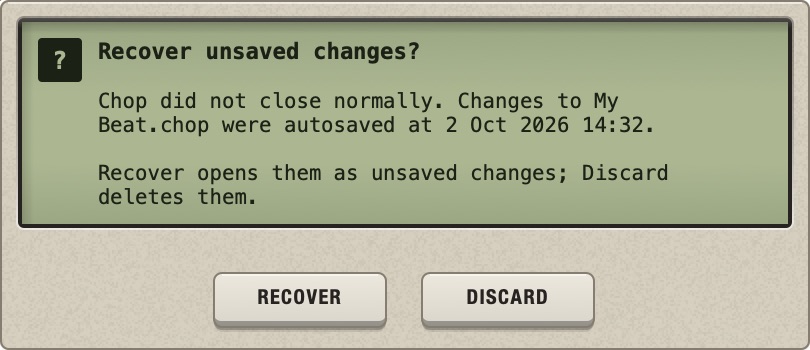
- Recover opens the copy as unsaved changes of your project. Nothing is written to your file until you save.
- Discard deletes the copy and opens Chop as usual.
At most the last 5 minutes are lost. Autosave does not replace saving.
After a crash
If Chop crashed, or stopped responding and had to be closed, the next start says so (Chop quit unexpectedly or Chop stopped responding) before it offers the recovery.
- Send Report... writes a text report, shows it in the Finder and opens an email to attach it to. Nothing is sent by itself: you read it and send it.
- Don't Send just goes on.
The report holds the last events of that session (which project by name, the audio device, the plugins loaded, the screens, Play and Stop) and the system's crash report, without your account name or home folder.
If the crash happened inside a plugin, Chop names it and shows a switch to disable it before the recovered project loads it again. The switch is off by default.
What a project contains
| Saved in the project | Not in the project |
|---|---|
| Tempo, time signature, length, key, loop range; for each track: which sample, its slices, the four patterns, the parts, the automation, the sound and timing settings; the whole mixer; which plugins and their settings; MIDI mappings. | The audio itself; the plugins; the cursor; what is selected; the screen you were on; the settings listed in What Chop remembers. |