Start
Install and set up
Install Chop, open it the first time and choose your audio device.
What you need
- A Mac with Apple silicon (M1 or later) and macOS 11.5 or later. Chop does not run on Intel Macs.
- 8 GB of RAM.
- A screen of at least 1440 × 900.
- Speakers or headphones, on any audio device macOS can use. An audio input is needed only if you want to record samples.
- Some audio files to work with: WAV, AIFF, FLAC or MP3.
Optional: VST3 effect plugins and a MIDI controller with knobs or faders. Chop has no built-in effects apart from the EQ on each mixer strip.
Install Chop
- Download Chop.
- Open
chop.dmgand drag Chop into your Applications folder.
Open it the first time
The beta is not notarised by Apple yet, so macOS refuses to open it the first time.
- Double-click Chop in Applications. macOS shows a warning: close it.
- Open System Settings > Privacy & Security and scroll down to the message about Chop.
- Click Open Anyway and confirm.
You do this once. From then on Chop opens like any other app.
If macOS asks whether Chop may use the microphone, allow it. Chop uses the audio input only when you press Rec, to record a sample.
Choose your audio device
- Click the gear at the right of the toolbar, or press Cmd+,. The Audio / MIDI page opens in place of the screen.
- Choose the output device: your audio interface, or the Mac's speakers or headphones.
- Leave the sample rate and the buffer size as they are for now.
- Press Esc, or click the gear again, to go back.
The other settings on this page (input, buffer, MIDI inputs) are explained in Settings and the window.
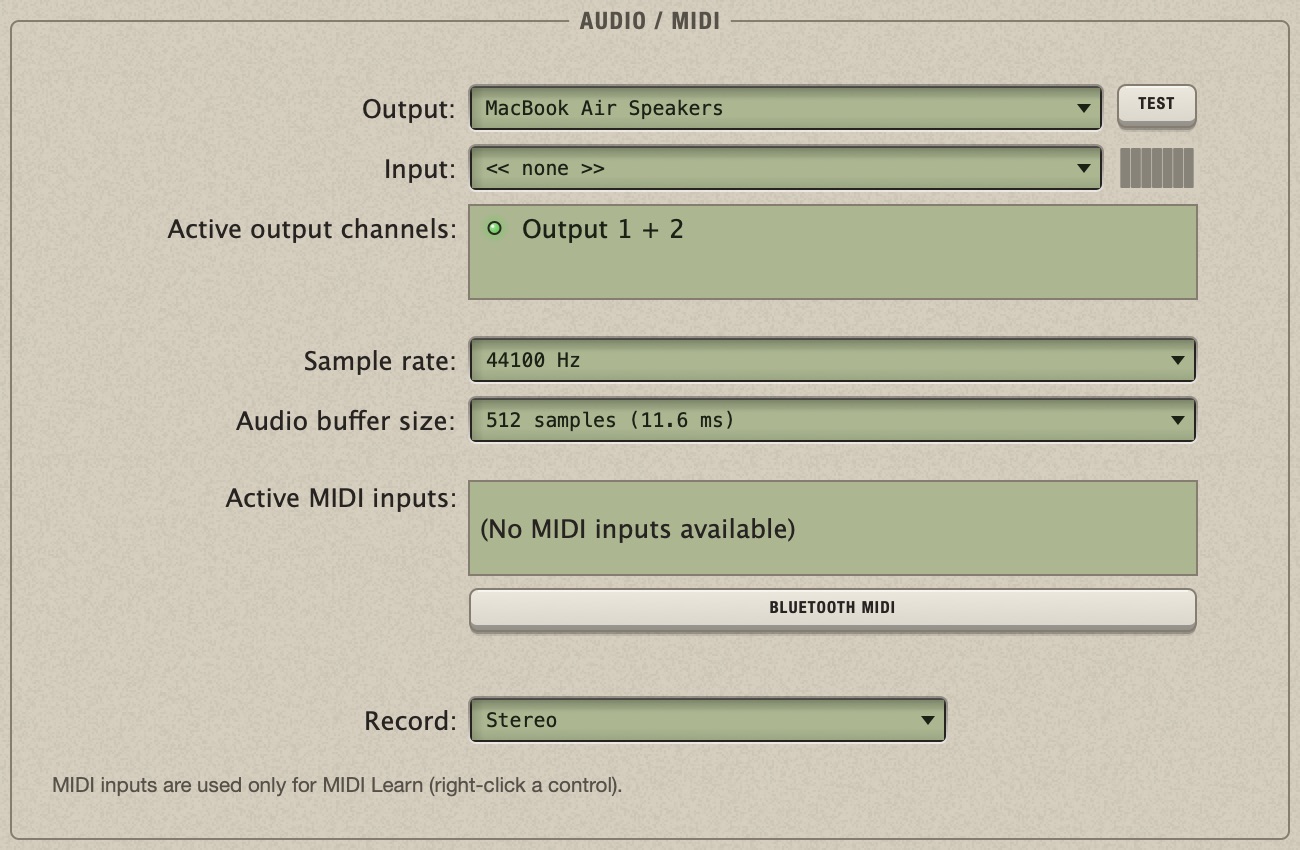
The Test key beside Output plays a short tone through the chosen device.
Check that you hear sound
- Drag an audio file of a few seconds from the Finder onto the large green area in the middle of the window. Its waveform appears.
- Press Return. The sample plays, over and over.
- Press Return again to stop.
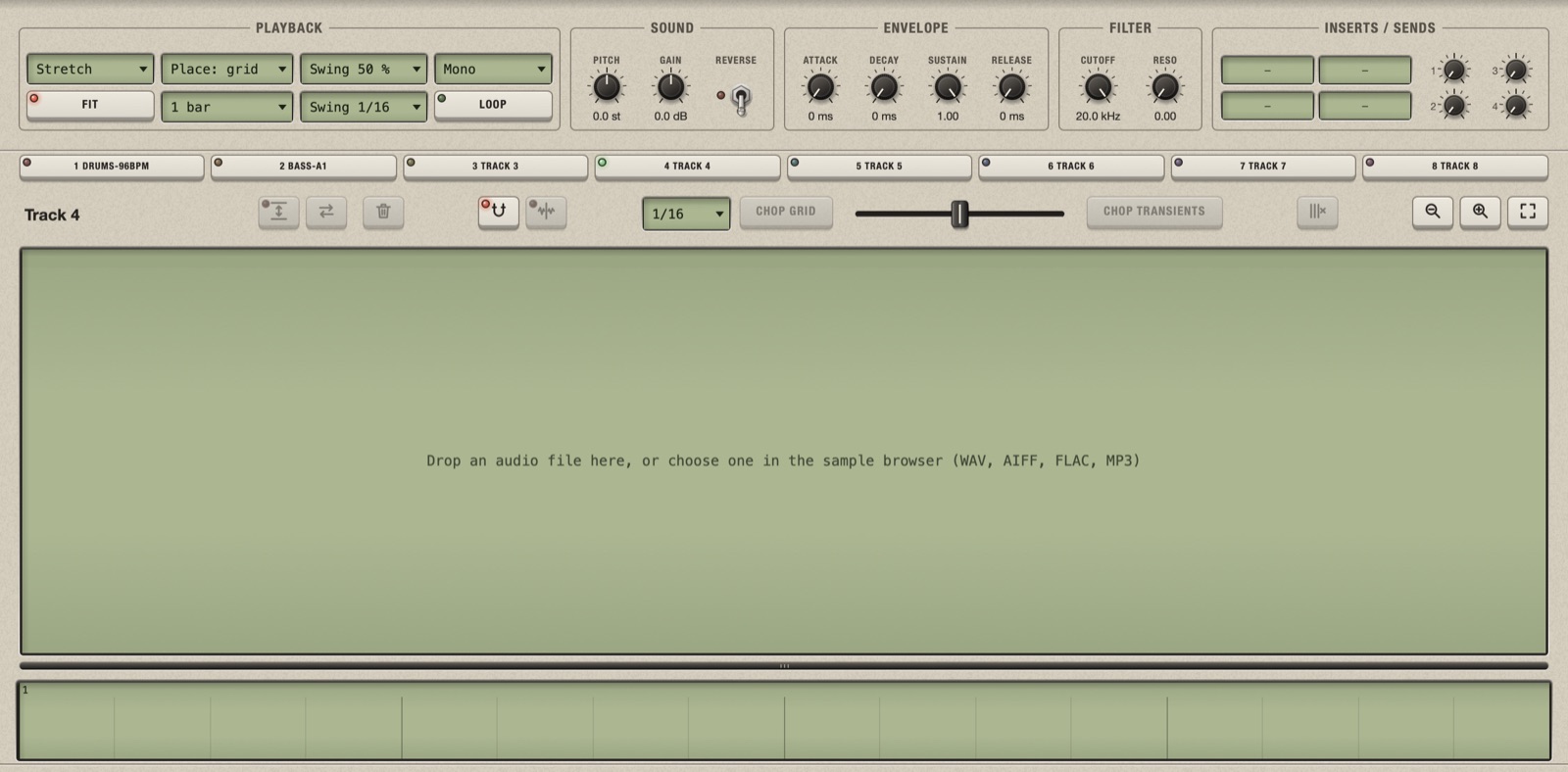
No sound? See Troubleshooting.
To start again from an empty project, choose File > New Project and click Don't Save.
Set up the optional things
- Plugins: Chop has to look for your VST3 effects once. See Find your plugins.
- MIDI controller: see Connect the controller.
- Samples: add your sample folders to the browser. See Add your folders.
Next
How Chop works explains the idea behind the app, and Find your way around shows what is in the window. If you prefer to learn by doing, go to Your first chop.