Start
Play and listen
What Play, Return and Space do on each screen, and how to hear a slice, a track or the whole song.
The idea: you hear what the screen shows
Chop has no separate "solo this track" or "audition" mode. Instead, playback follows the screen:
- the Sample screen shows one track, so it plays that track's pattern, alone, round and round. This is where you make the material;
- the Multitrack and the Mixer show the song, so they play the song.
Two keys start playback, and they differ only on the Sample screen. Return always plays everything the screen shows. Space is the "listen to this" key: it plays the one slice you have selected. A quick double tap of Space does what Return does, so that one hand can stay on the space bar while the other works the mouse.
The short version
| Screen | Return (or the Play key) | Space | Space twice, quickly |
|---|---|---|---|
| Sample | Plays the selected track's pattern from its start. | Plays the selected slice, once. With no slice selected, the same as Return. | Plays the whole pattern from its start. |
| Multitrack, Mixer | Plays the song from the cursor. | The same as Return. | The same as Return. |
While anything plays, Return, Space or the Stop key stops it.
Hear the track you are working on
On the Sample screen, press Return. The selected track plays its pattern from the first bar, and a line (the playhead) moves across the waveform and the blocks under it.
- With Loop on in the toolbar (L; it is on when Chop starts), the pattern repeats until you stop.
- With Loop off, it plays once and stops at the end.
- Return always plays the whole pattern, also when a slice is selected.
You can edit while it plays: every change is heard at once.
Hear one slice
- Click a slice in the waveform, or a block in the lane under it. Or step through the slices with Left and Right.
- Press Space. That slice plays once, with its own pitch, envelope and filter. The position in the toolbar reads
slice.
Press Space again after it has finished to hear it again.
Go from one slice to the whole pattern
Tap Space twice quickly (two taps within less than half a second). The first tap starts the slice; the second one plays the whole pattern from its start instead.
This lets you keep one hand on the space bar: one tap to check a slice, a double tap to hear it in context, one more tap to stop.
| You press | Nothing is playing | Something is playing |
|---|---|---|
| Space once, a slice selected | The slice plays once. | Playback stops. |
| Space once, no slice selected | The pattern plays. | Playback stops. |
| Space twice quickly | The pattern plays from its start. | |
| Return | The pattern plays. | Playback stops. |
Repeat one slice
To hear a slice over and over while you turn its knobs:
- Turn on the Loop key in the Playback group of the top panel (not the one in the toolbar).
- Select a slice.
- Press Return or Space. The slice repeats, without gaps, until you stop.
- Select another slice while it repeats: that one repeats instead.
- Click an empty area (no slice selected) or turn the Loop key off: it stops.
- With no slice selected, Return plays the whole pattern as usual. A double tap of Space does too.
This Loop key is a preference of the screen. It is not saved with the project.
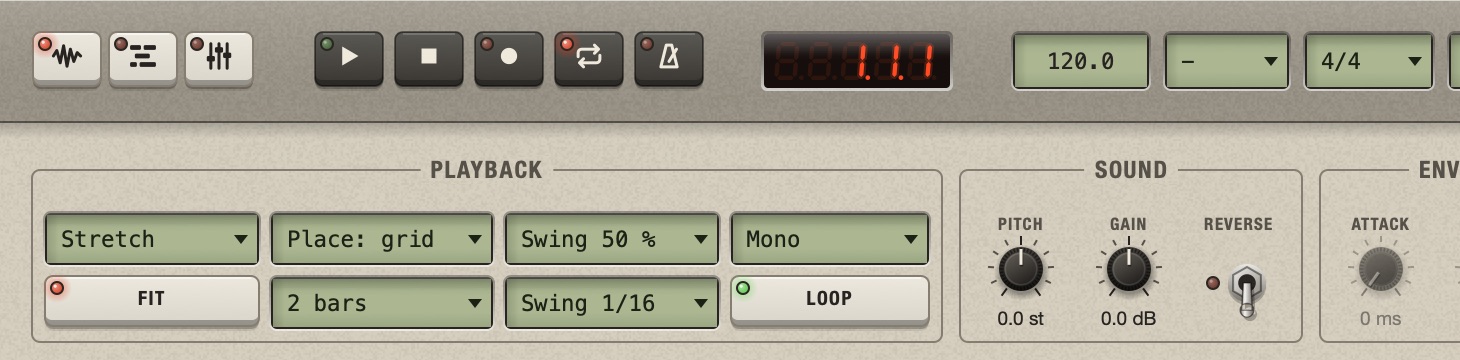
1The toolbar's Loop: repeat, or play once. 2The Sample screen's Loop: repeat the selected slice.
Change track, slice or variation while it plays
- Another track: press 1 to 8 or click another tab. Playback moves to that track.
- A slice: clicking a slice or a block does not interrupt the pattern. You can select and edit while it runs.
- Another variation (the letters A B C D at the right of the lane): the new pattern is heard at once.
What you hear on the Sample screen
The Sample screen is for judging the material of one track, so it plays that track as it will sound in the song, minus everything that belongs to the arrangement:
- Only the selected track. The other tracks are silent.
- Through its effects: its inserts and EQ, its sends, the returns and the master. An effect you add in the Mixer is heard here too.
- At its level and pan in the Mixer.
- Mute and solo are ignored: you always hear the track you are editing. Otherwise a track you muted in the song would be silent here, where you opened it to work on it.
- Automation does not play. Automation belongs to the parts of the song, and the Sample screen plays the pattern, not a part. You hear the controls at their fixed values.
- The whole pattern, even if the part markers make its parts shorter in the song.
Hear the song
On the Multitrack or the Mixer, press Return or Space. All the tracks play from the cursor, with mute, solo and automation. You can go from the Multitrack to the Mixer and back while it plays.
- With Loop on, the song repeats over the loop range: the whole project, until you draw a shorter range.
- With Loop off, it plays from the cursor to the end of the project and stops.
- When you stop, the position goes back to the cursor.
Start from another bar
On the Multitrack, click the ruler (the strip with the bar numbers). A small pointer and a faint line mark the cursor: Play starts there.
- The cursor lands on the toolbar grid. Hold Cmd to place it freely.
- Click the ruler while the song plays: playback jumps there.
- Home puts the cursor back at bar 1. While playing, the song goes on from there.
The cursor is not saved with the project and is not an edit: undo does not move it.
Loop a few bars
- On the Multitrack, drag on the thin dark strip above the ruler. The part you draw is the loop range.
- Drag its ends to make it longer or shorter, or its middle to move it. Hold Cmd to leave the grid.
- Check that Loop is on (L).
- The range is solid while Loop is on and an outline while it is off. With Loop on, the bars outside the range are shaded.
- Start before the end of the range and playback wraps from its end to its start.
- Start after the range: the song plays to the end of the project, then goes on from the start of the range.
- Double-click the strip to loop the whole project again.
The loop range is saved with the project, and changing it can be undone.

1The cursor, at bar 2: Play starts here. 2The loop range, over bars 3 and 4. The bars outside it are a little darker.
Three things called loop
| Control | Where | What it does |
|---|---|---|
| Loop | Toolbar, L | Repeat, or play once and stop. It applies to whatever is playing: the pattern on the Sample screen, the song elsewhere. |
| Loop | Playback group of the Sample screen | Play repeats the selected slice instead of the pattern. |
| Loop range | Strip above the Multitrack ruler | Which bars of the song the toolbar's Loop repeats. |
They combine. With the toolbar's Loop on and a range of bars 5 to 8, the song repeats bars 5 to 8. With the toolbar's Loop off, the range is ignored and the song plays to its end.
The metronome
K, or the metronome key in the toolbar, switches a click on every beat, with a higher click on the first beat of each bar. It works on every screen, also while a single slice plays. It is a preference of the app: it stays as you left it in every project, and it is never in an export.
What stops playback by itself
- Going from the Sample screen to the Multitrack or the Mixer, or back: what plays would change, so it stops.
- The end of the pattern or of the project, when Loop is off.
Opening a page (settings, MIDI Mappings, VST3 Plugins) does not stop it. On the import and record page, Space and Return play that page's selection instead.
Other things that make sound
- The sample browser: a click on a file previews it. See Preview and load.
- The import and record page: Space plays the selection, a click on its waveform plays from there. See Take a piece of a long file.
Both go straight to the output: not through the mixer, the effects or the master fader.