Project
Settings and the window
Audio and MIDI devices, the size of the interface, and what Chop remembers.
Audio and MIDI devices
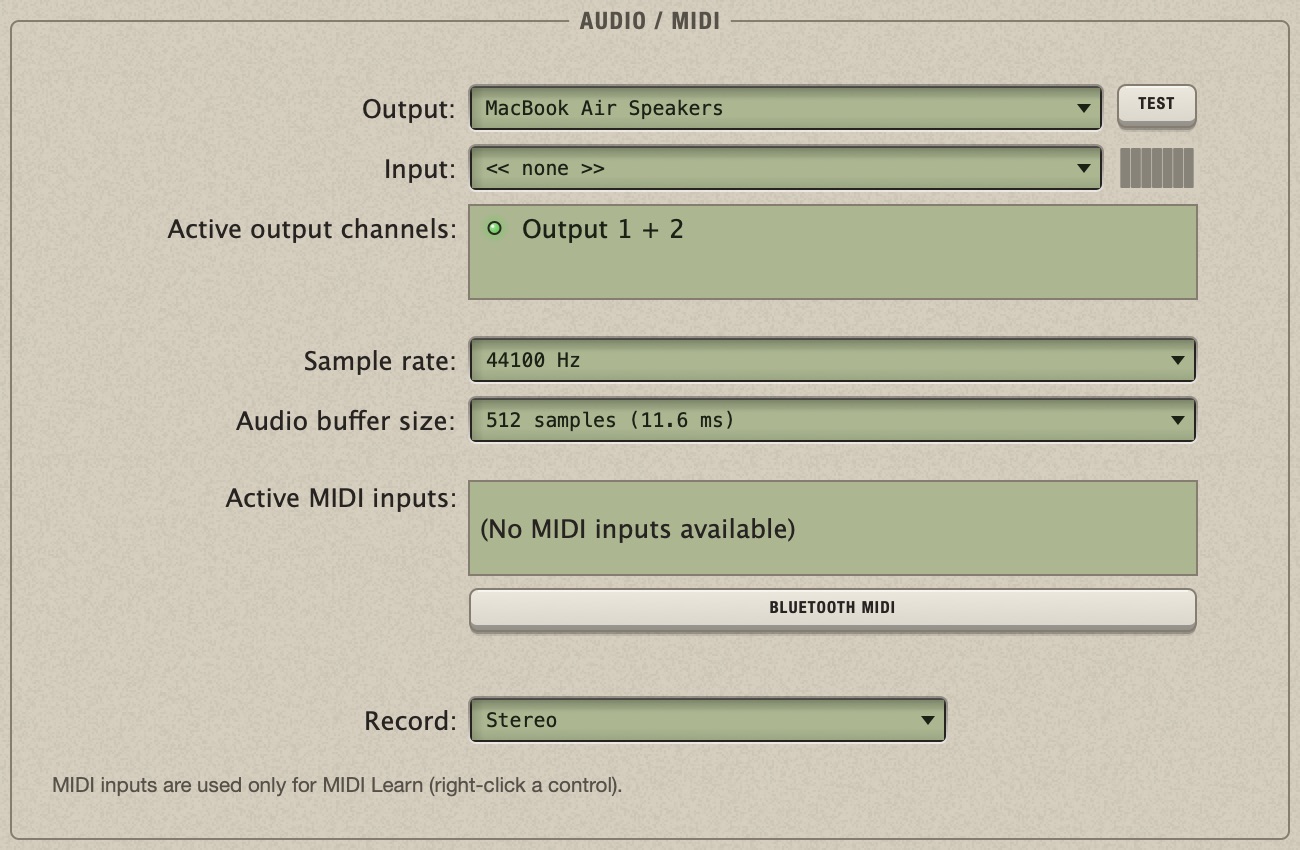
Click the gear in the toolbar, press Cmd+, or choose File > Audio/MIDI Settings. The page opens in place of the screen; Esc or the gear closes it. Playback goes on while it is open.
| Setting | What to choose |
|---|---|
| Output | Where the sound goes: your audio interface, or the Mac's speakers or headphones. Test plays a short tone through it. |
| Active output channels | Which pair of outputs of the device Chop plays through. |
| Input | The device and the channels that Rec records. Needed only to record samples. A device with no channel switched on gets its first two. |
| Record: | Stereo, Mono, first input or Mono, second input. Use mono for a single microphone or instrument. |
| Sample rate | 44100 or 48000 Hz suit almost everything. Samples of any rate play at the right speed. |
| Buffer size | Smaller: the controls answer faster. Larger: more room for heavy plugins. If the sound crackles, choose a larger one. |
| Active MIDI inputs | Switch on the controllers you want to use. They are used only to move controls. Bluetooth MIDI opens the Mac's window for pairing a wireless controller. |
Make the interface bigger or smaller
| Cmd+= | View > Zoom Interface In |
|---|---|
| Cmd+- | View > Zoom Interface Out |
| Cmd+0 | View > Actual Size: back to 100 % |
The steps are 75, 85, 100, 115, 125 and 150 %. Everything is scaled, menus and tooltips included. A step that would not fit your screen is not offered.
Resize the window
- Drag the edges of the window, or use the green button for full screen. The smallest size is 1320 × 840.
- A larger window gives the extra room to what needs it: the waveform, the timeline, the faders, wider columns in the panels.
- With the interface zoomed in on a small screen, the layout becomes compact: the rows of the Multitrack get narrower and the sample browser opens over the screen instead of beside it.
Chop always opens at 1320 × 840 and 100 %: the window's size and the zoom are not remembered.
What Chop remembers
| Kept in the project file | Kept by the app, for every project | Not kept |
|---|---|---|
| Everything about the song: tempo, tracks, slices, patterns, parts, automation, mixer, plugin settings, MIDI mappings, loop range. | Audio and MIDI devices; the Record choice; the metronome; the browser's folders, favourites, recent samples and Preview key; the plugin list and its folders; the Export choices; the recent projects. | The window's size and the zoom; the cursor; the selection; the Loop key of the Sample screen; the slice settings you copied. |
Version, feedback and licences
Choose Chop > About Chop. The window shows the version and the build number, with keys for the Website, Send Feedback (an email with the version already in its subject) and Licences (the licences of the software Chop includes; Back returns).
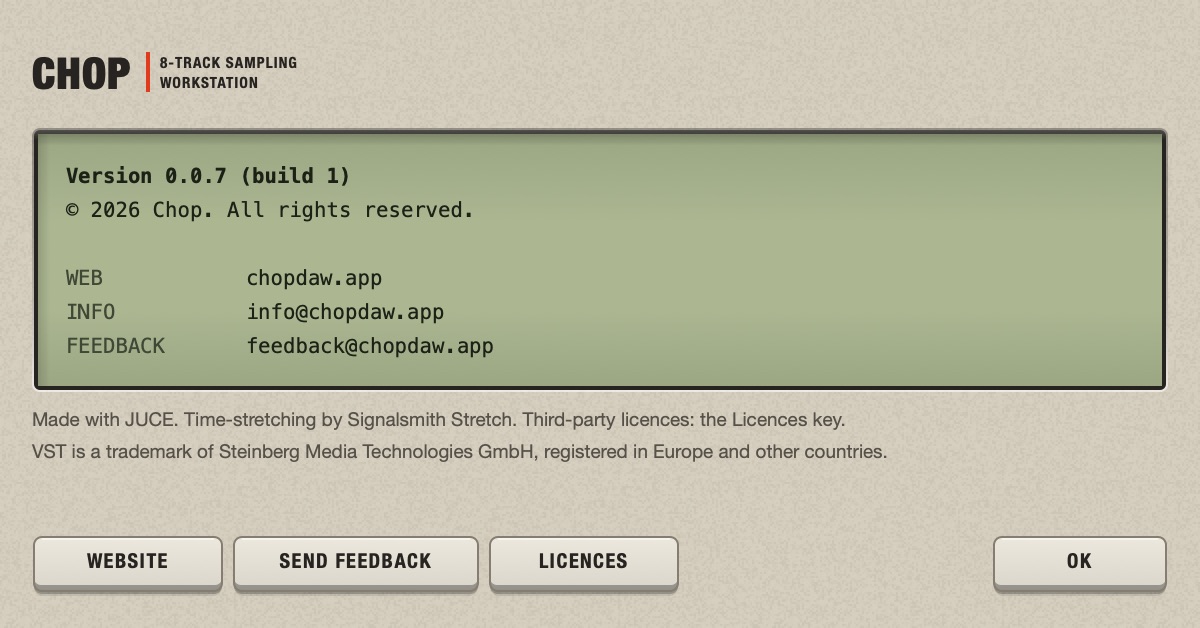
When you report a problem, include the version and build number shown there.