Start
Find your way around
What is in the window, how the controls work and where each thing is done.
The window
The window has two parts:
- the toolbar, the dark strip at the top, always there;
- under it, one of three screens: Sample, Multitrack or Mixer.
Chop looks like a hardware sampler. The green panels are its displays: they show waveforms, blocks and lists. The red numbers in the toolbar show the position. A small light (LED) on a key is lit when the key is on.
The toolbar, from left to right


| Control | What it does | Key |
|---|---|---|
| 1Three screen keys | Show the Sample, Multitrack or Mixer screen. The lit one is the screen you are on. | Cmd+1 / 2 / 3 |
| 2Play | Starts and stops playback. Its light is green while something plays. See Play and listen. | Return |
| 3Stop | Stops playback. | |
| 4Rec | Opens the page that records a new sample. See Record a sample. | Cmd+R |
| 5Loop | On (light red): playback repeats. Off: it plays once and stops. | L |
| 6Metronome | A click on every beat. | K |
| 7Position | The red numbers: where playback is. See Read the position. | |
| 8BPM | The project's tempo, from 20 to 300. Drag it up or down, or double-click it and type. | |
| 9Key | A note for yourself (for example Am). It changes nothing in the sound. | |
| 10Time signature | From 2/4 to 12/8. It sets how many beats a bar has. | |
| 11Length | How long the project is: 2 to 256 bars. | |
| 12Grid | The step that things snap to when you move them: 1/1 to 1/64, and triplets (T). | |
| 13Undo, Redo | Take back the last edit, or do it again. A key is dimmed when there is nothing to undo or redo. | Cmd+Z, Cmd+Shift+Z |
| 14Browser | Shows or hides the sample browser at the left of the window. | Cmd+B |
| 15MIDI | Opens the MIDI Mappings page. | |
| 16Gear | Opens the Audio / MIDI settings. | Cmd+, |
The fields have no labels. Hold the mouse over any key or field for a moment and a tooltip shows its name and its shortcut.
The three screens
| Screen | What you do there | Start here |
|---|---|---|
| Sample | Work on one track: load its sample, cut it into slices, build its pattern and shape its sound. | The Sample screen |
| Multitrack | See all eight tracks on a timeline: decide when each one plays, and draw automation. | Arrange the song |
| Mixer | Set levels, pan, EQ, sends and effects. | Mix the tracks |
Everything you hear is made on the Sample screen. The Multitrack only places what you made there, and the Mixer balances it. Why it is built this way is explained in How Chop works.
The eight tracks
A project always has eight tracks, each with a number, a name and a colour. One of them is the selected track: the one the Sample screen shows.
- Press 1 to 8 to select a track, on any screen.
- On the Sample screen, click a track's tab (the row of eight keys under the top panel).
- On the Multitrack, click a track's row. Its pencil key opens the track on the Sample screen.
A track takes the name of the sample you load into it. To change the name or the colour, right-click the tab or the row. See Name and colour a track.
Pages that replace the screen
Some things open as a page: it takes the place of the screen, under the toolbar, and the screen comes back when you close it.
| Page | Opened by |
|---|---|
| Audio / MIDI | The gear, Cmd+,, or File > Audio/MIDI Settings |
| MIDI Mappings | The MIDI key, or File > MIDI Mappings |
| VST3 Plugins | File > VST3 Plugins |
| Import Sample | Loading a file longer than 10 seconds |
| Record Sample | The Rec key, or Cmd+R |
To close a page, press Esc, press its key again, or click a screen key. Playback goes on while a page is open, and Return and Space still work. The editing keys (Delete, Cmd+D and so on) do nothing, so you cannot change by mistake the screen hidden under the page.
How the controls work
| Control | How to use it |
|---|---|
| Knob | Drag up or right to turn it up, down or left to turn it down. Double-click puts it back to its default. |
| Fader | Drag it. Double-click puts it back to 0 dB. |
| Green box with an arrow | A menu: click it and choose. |
| Green box with a number (BPM) | Drag up or down, or double-click and type. |
| Metal switch | Click it. Lever up and light on means on. |
| Key with a light | Click it. The light is lit while it is on. |

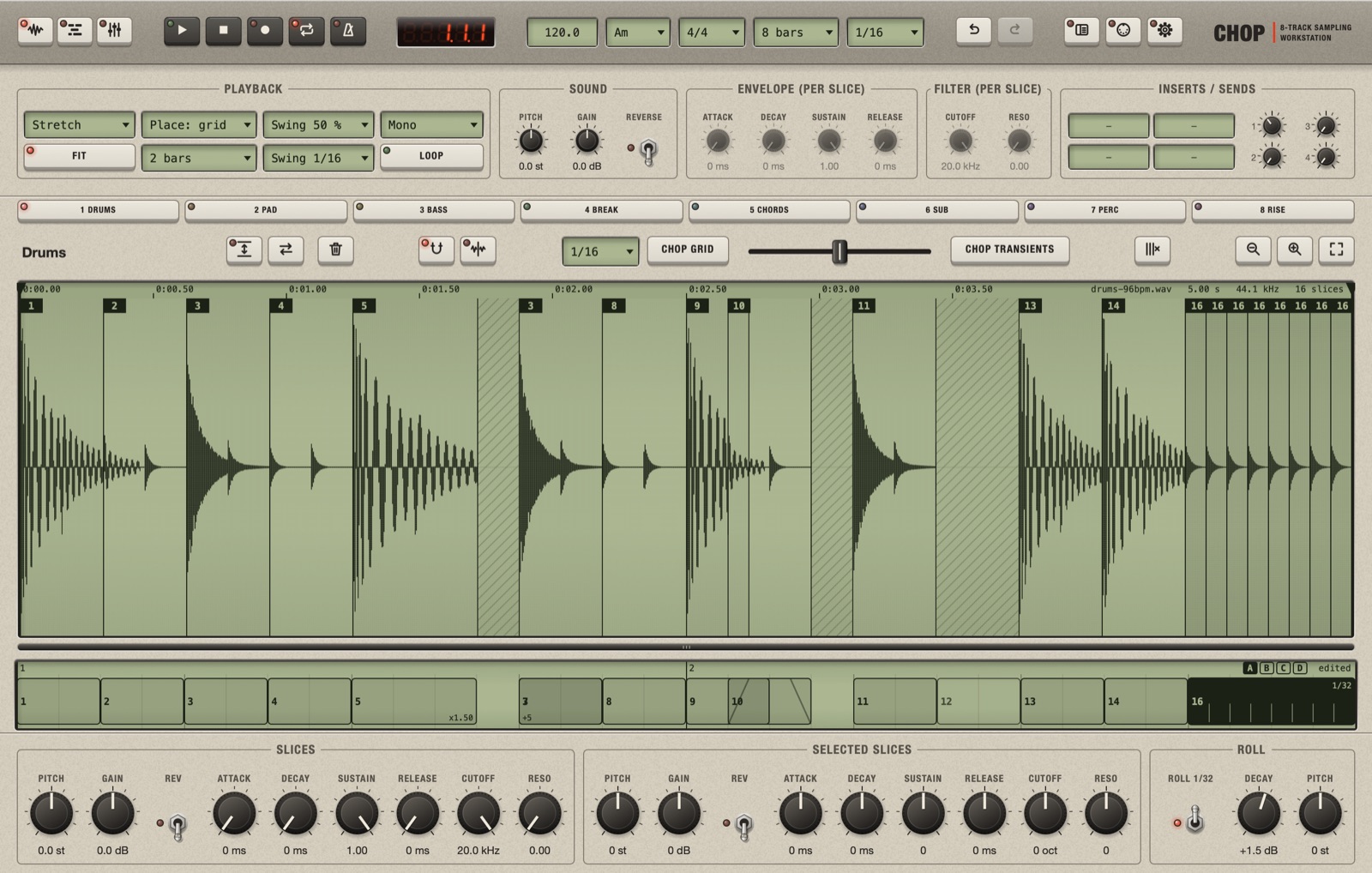
In the picture: the green boxes with an arrow are menus; Fit and Loop are keys with a light; Pitch and Gain are knobs, with their value under them; Reverse is a metal switch.
Right-click any knob, fader or switch for its menu: map it to a MIDI controller, or reset it. See Control Chop from a MIDI controller.
Every knob can be turned while the music plays, and you hear the change at once.
Undo
Every edit can be undone: Cmd+Z, or the Undo key in the toolbar. Cmd+Shift+Z redoes. One drag of a knob, a marker or a block is one step, however long it lasted. The Edit menu shows what the next undo takes back.
What you select, where the cursor is and which screen you are on are not edits: undo does not change them.
Read the position
The red numbers show bar . beat . step, where a step is a sixteenth note. 2.3.1 is the third beat of bar 2.
- On the Sample screen they count inside the track's pattern, starting again at
1.1.1each time it repeats. - On the Multitrack and the Mixer they count in the song. When stopped they show where Play will start.
- While you listen to a single slice, they read
slice.
The title of the window
The title shows the project's name: Chop - My Beat, or Chop - Untitled for a project not saved yet. A * after the name means there are changes you have not saved.
Where each thing is done
| You want to | Go to |
|---|---|
| Load a sample | Sample screen, or drop the file on a Multitrack row |
| Cut, reorder, pitch or reverse pieces of a sample | Sample screen |
| Decide in which bars a track plays | Multitrack |
| Fade a track in, or move a send over time | Multitrack, the automation block under the tracks |
| Set a track's volume and pan | Mixer |
| Add an effect | Mixer, or the Inserts / Sends group on the Sample screen |
| Mute or solo a track | Mixer, or the track's row in the Multitrack |
| Change the tempo | Toolbar, BPM |
| Save, open or export | File menu |